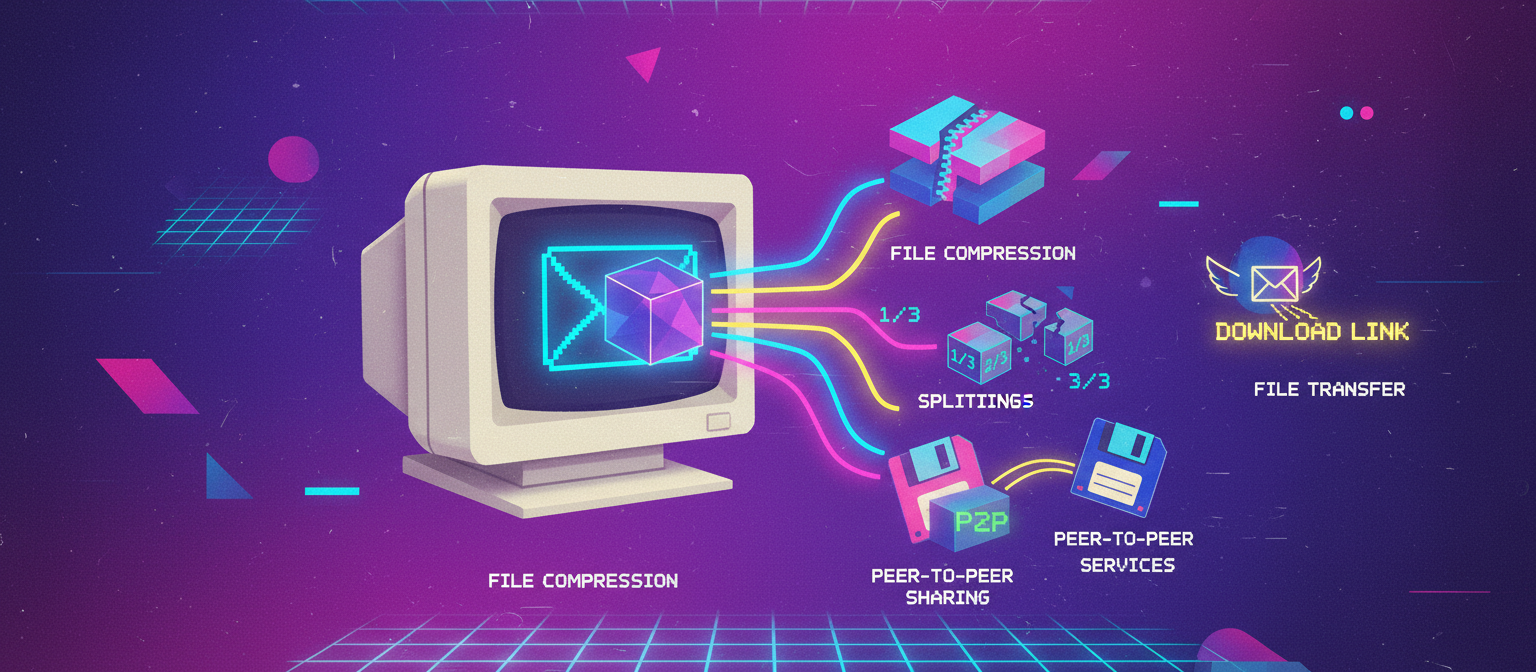
Last week, my dad tried to email some property documents to his lawyer. Six scanned PDFs. Total size: 28MB.
Gmail didn’t allow it. “Attachment limit is 25MB.”
So he tried splitting them into two emails. First one sent successfully. Second one bounced back… because the lawyer’s inbox was full.
Classic situation.
Of course, he called me: “How do I send these files?”
I didn’t set up Google Drive. I didn’t create a Dropbox link.
I just made the files smaller.
Took me 2 minutes. Everything went through in one email.
If you’ve ever hit that 25MB email limit, here are some simple ways to deal with it — without signing up for anything complicated.
Why files get so big
Most of the time, the problem is scanned documents.
Someone scans a 5-page contract at full resolution, and it ends up being 10–12MB. That’s already half your email limit gone. Scan two more documents like that and you’re over the limit before you even realize it.
Another common issue? PDFs with lots of images.
Think about reports, brochures, or inspection files. One high-quality image inside a PDF can be 3–4MB. Add 20 images, and suddenly your file is 60MB. I’ve seen real estate inspection reports that were 40MB for a single property. That’s not going through anyone’s email.
But here’s the truth — most of that size isn’t necessary.
A 12MB document can often be reduced to 1–2MB.
A 4MB image can look almost identical at 400KB.
You’re not losing anything important — just removing extra weight that nobody can see anyway.
Method 1: Compress the PDF
This is what I use almost every time. Fastest fix, works in most situations.
Just upload your PDF to a compression tool, choose medium quality, and download the smaller version. The whole thing takes about 10 seconds.
My dad’s 28MB documents? Reduced to 4.2MB. Same content. Same pages. Fully readable. His lawyer didn’t even notice anything was different.
Just to give you an idea — my dad’s pension letter was 8MB. After compression? 600KB. His 6-month bank statement was 15MB, came down to about 2MB. I’ve compressed inspection reports that were 18MB and got them to 3MB. Every time the person on the other end had zero complaints about quality.
For text-heavy documents like contracts, letters, and statements — compression works incredibly well because text compresses better than images. You can cut 80-90% of the file size and the text is still perfectly sharp.
For documents with lots of photos — like catalogs or inspection reports — compression still helps a lot, but the reduction might be 60-70% instead of 90%. Still enough to get under the email limit in most cases.
I’d say medium quality is the sweet spot. I’ve sent hundreds of compressed documents to banks, lawyers, and government offices. Nobody has ever said “this looks low quality.” Because it doesn’t. The difference is invisible at normal viewing size.
Method 2: Compress images before creating PDFs
If you’re the one creating the PDF — like scanning receipts with your phone or taking photos of documents — this is worth doing first.
Phone photos are usually 4–5MB each. That’s because your phone shoots at full resolution, which is great for photography but way overkill for a document scan.
Compress each image to around 300–400KB before converting to PDF. They’ll still look the same — you’re scanning a piece of paper, not photographing a sunset. The detail doesn’t matter that much.
Now when you combine 10 receipts into a PDF, the file is 3–4MB instead of 40–50MB. That’s the difference between an email that sends and one that bounces.
I do this every month for my dad’s electricity bills. Compress the photos first, then make the PDF. His bank has never had an issue with the file size.
Method 3: Split the file into parts
Sometimes even after compression, the file is still too big. Maybe it’s a 200-page document with lots of detailed diagrams. Or a legal filing with high-res exhibits. Compression helped but the file is still 22MB.
In that case, split it into parts.
Pages 1–100 → Email 1
Pages 101–200 → Email 2
Not fancy, but it works every single time. There’s no file too big for this approach — you can always split it into smaller chunks.
Just make sure to label your emails clearly. “Property Documents (Part 1 of 2)” and “Property Documents (Part 2 of 2).” Otherwise the person on the other end doesn’t know there’s more coming. I’ve had people reply “is that all?” because they didn’t realize a second email was sitting in their inbox.
Method 4: Send only what’s needed
This is the one people always overlook. Do you actually need to send the entire document?
My dad once tried emailing a full 20-page bank statement to his lawyer. The lawyer only needed 3 pages showing one specific transaction. We extracted just those 3 pages — file went from 15MB to 800KB. Could’ve sent it 30 times over.
Same thing happens with reports. Someone shares a 100-page company report but the client only needs the executive summary on pages 1–5 and the financials on pages 45–52. Don’t send 100 pages. Extract the relevant ones, merge them into one clean file, and send that.
Smaller file. Faster to send. Faster to download. Easier for the recipient to find what they need. Everyone wins.
Method 5: Convert to a smaller format
Some file formats are just naturally massive.
PNG screenshots? Big.
TIFF scans? Very big. A single TIFF can be 20–30MB.
BMP files? Even bigger and nobody should be using those in 2026.
Convert to JPG and the file drops dramatically. That 20MB TIFF becomes a 1–2MB JPG. Same document, same readability, fraction of the size.
If someone sends you a file in a weird format and it’s too big — converting the format is often the quickest fix before trying anything else.
What about Google Drive?
Yes, uploading to Google Drive and sharing a link works. I use it myself sometimes for really large files.
But let’s be honest — it’s not always simple for everyone.
My dad would:
- Forget his Google password
- Accidentally share the entire folder instead of one file
- Set permissions to “restricted” so the lawyer can’t open it
- Call me to fix all of the above
For people who are comfortable with cloud storage, it’s a great option. For people like my dad who just want to attach a file and press send — making the file smaller is the simpler answer. Same result, no new tools to learn.
Also worth mentioning — some corporate firewalls and email systems block Google Drive and Dropbox links. I’ve had situations where someone sent a Drive link and the recipient couldn’t open it because their company blocks external cloud links. An actual email attachment always gets through.
The encoding thing nobody tells you
Here’s something most people don’t know. When you attach a file to an email, it gets encoded (converted to text format for transmission). This encoding makes the file about 33% larger.
So a 20MB attachment becomes roughly 27MB in the actual email. That’s over Gmail’s 25MB limit even though your file is “only” 20MB.
Safe rule: if the email limit is 25MB, keep your attachments under 18–19MB to be safe. Or just compress to under 10MB and never worry about it.
Email size limits by provider
- Gmail → 25MB
- Outlook / Hotmail → 20MB
- Yahoo Mail → 25MB
- Apple iCloud Mail → 20MB
- ProtonMail → 25MB
- Corporate email (Exchange) → usually 10–20MB (depends on the company)
If you’re sending to someone at a company and you don’t know their limit — keep it under 10MB. That’s safe for pretty much everywhere.
And remember: the limit is for ALL attachments combined, not per file. Three 9MB files = 27MB = rejected. Even though each file is under the limit.
My actual workflow
Whenever I need to send large files, I follow this order:
- Is it under 20MB? → just send it, don’t overthink it
- Over 20MB → compress the PDF
- Still too big → do I need all the pages? Extract only what’s needed
- Still too big → split into 2–3 parts, send separate emails
- Massive file that nothing fixes → okay fine, Google Drive
I’ve been doing this for years. Step 2 solves it about 90% of the time. I rarely get to step 4. Step 5 has happened maybe twice ever.
Quick FAQs
Will compression make the document look bad?
No — not at medium quality. Text stays sharp. Scans stay readable. I’ve sent compressed documents to banks, lawyers, universities, and government offices. Nobody has ever mentioned quality. Because there’s no visible difference at normal viewing size.
My company’s email limit is only 10MB. What do I do?
Compress first — that usually gets most files under 10MB. If not, extract only the pages that are needed. If you deal with this daily, honestly ask your IT department to raise the limit. 10MB is painfully low for 2026.
Can I send large files through WhatsApp instead?
WhatsApp allows files up to 2GB now, which is way more than email. For PDFs, it sends them as-is without recompressing. So yes, WhatsApp actually works great for sharing large documents. Just don’t send important photos through it — WhatsApp destroys image quality.
Is WeTransfer a good option?
It works. You upload the file, they give you a link, the recipient downloads it. But your file sits on their server for 7 days (free plan). For general stuff that’s fine. For sensitive documents — legal, financial, medical — I’d rather just compress and email directly. Fewer places for the file to exist.
Why not just use a zip file?
Zipping a PDF barely reduces the size — maybe 5-10%. PDFs are already compressed internally. Zipping an already compressed file doesn’t do much. Proper PDF compression using tools designed for it gives you 60-80% reduction. Way more effective.
Need to shrink a file for email? Compress your PDF here — takes a few seconds, usually cuts size by 60-70%.