I got into an argument with a friend last week. He was building a website for his tailoring business and he’d uploaded all his product photos as PNG files. The homepage was loading in like 12 seconds. On mobile it was even worse.
I told him to switch to JPG or WEBP. He said “but PNG is better quality.” And technically he’s not wrong. But he also doesn’t need 8MB product photos on a website where people just want to see a shalwar kameez.
This whole PNG vs JPG thing confuses a lot of people. I’ve had to explain it so many times now that I figured I’d just write it down once.
The short version
If you’re in a hurry:
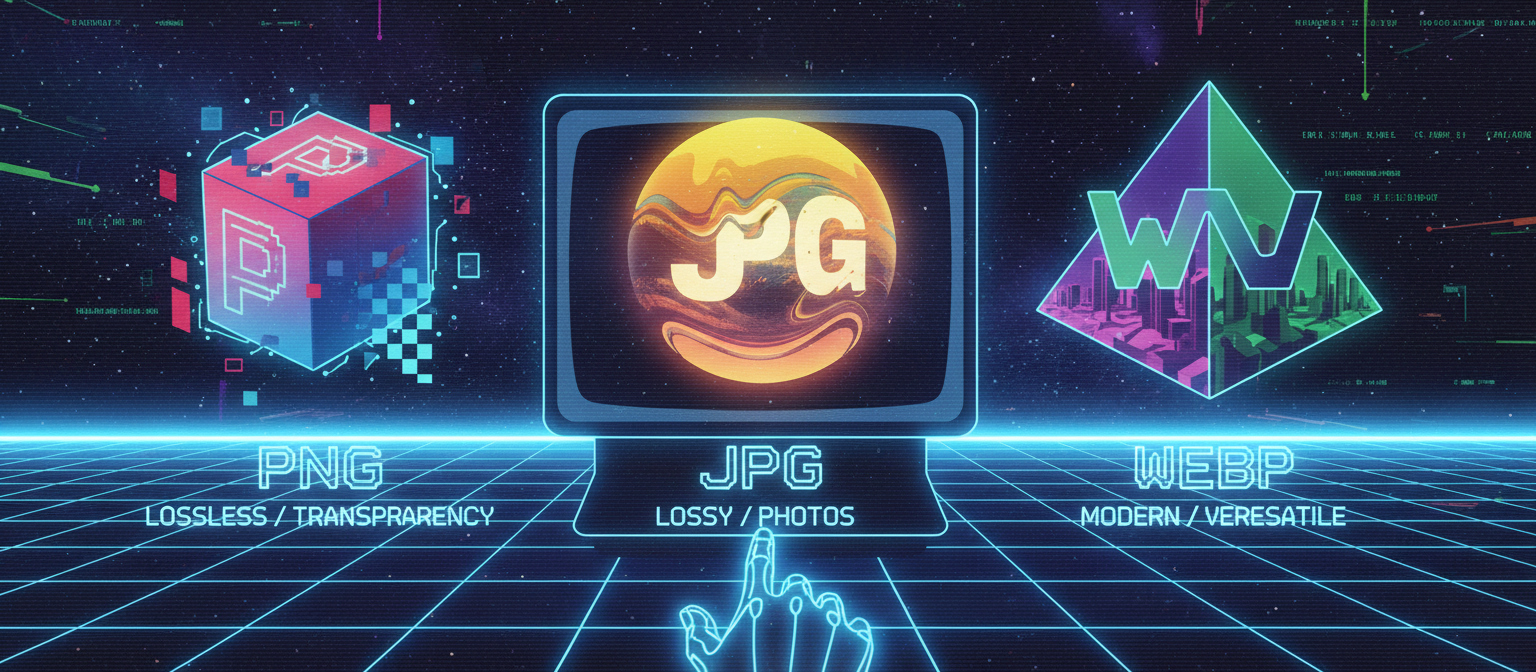
- JPG — use for photos. Smaller files. Slight quality loss but you won’t notice.
- PNG — use for screenshots, logos, text graphics, anything with transparency.
- WEBP — use for websites. Best of both worlds. Smallest files.
That’s it. That covers 95% of situations. If you want to know WHY, keep reading.
JPG — the photo format
JPG has been around forever. Every phone, every camera, every device knows how to handle JPG.
What JPG does is look at your photo and say “okay these 50 pixels are all basically the same shade of blue, I’m going to store them as one value instead of 50.” That’s compression. It throws away tiny details that your eyes can’t really see anyway.
The result: a 12MP photo that would be 30MB uncompressed becomes 3-4MB as a JPG. And it looks the same to you.
The catch: every time you open a JPG, edit it, and save it again, it compresses again. And again. And again. Each time it loses a tiny bit more detail. Open and save the same JPG 20 times and you’ll start seeing weird blocky artifacts — especially around text and sharp edges. It’s like making a photocopy of a photocopy of a photocopy.
Basically if it came from a camera or a phone — JPG. If it’s a logo or a screenshot — not JPG. Simple as that.
PNG — the quality format
PNG keeps everything. No data thrown away, no compression tricks. What you put in is exactly what you get out. So yeah when people say “PNG is better quality” they’re technically right.
But here’s the problem. A photo that’s 3MB as JPG becomes 25-30MB as PNG. My friend’s tailoring website had 6 product photos as PNG — 48MB total. I nearly fell off my chair. Switched them to JPG and it went down to 4MB. His site went from loading in 12 seconds to under 2.
Where PNG actually matters is stuff with sharp edges and text. Take a screenshot and save it as JPG — zoom in on the text and you’ll see this weird smudgy blur around the letters. Save the same screenshot as PNG and the text is razor sharp. Once you notice this difference it bugs you forever.
The other big thing: transparency. PNG can have a see-through background. JPG can’t — it fills transparent areas with white. So if you need a logo to sit on top of a colored background, or you’re making a sticker, or anything where the background needs to be invisible — PNG is the only way. WEBP does transparency too but I’ll get to that.
Just don’t use PNG for regular photos. Your 4000×3000 phone photo doesn’t need to be 25MB. Nobody benefits from that.
WEBP — the new one
Google made WEBP and honestly it’s really good. It does everything JPG does but with smaller files. And it does everything PNG does — including transparency — also with smaller files.
A photo that’s 3MB as JPG might be 1.5MB as WEBP at the same quality. A logo that’s 500KB as PNG might be 150KB as WEBP. The savings are real.
I converted my friend’s entire website from PNG to WEBP. Total image size went from 48MB to about 6MB. Page loaded in under 2 seconds. He couldn’t believe it was the same photos.
The downside: WEBP isn’t as universally supported as JPG and PNG. Most modern browsers handle it fine — Chrome, Firefox, Safari, Edge. But some older apps and systems don’t recognize WEBP files. Try emailing a WEBP to someone’s grandma and she won’t be able to open it.
Also social media is hit or miss. Some platforms accept WEBP uploads, others don’t. Instagram doesn’t last I checked. WhatsApp converts everything anyway so it doesn’t matter there.
Use WEBP for: websites and blogs (fastest loading), any situation where you control where the image is displayed.
Don’t use WEBP for: sending to people who might not be able to open it, printing (print shops usually want JPG or PNG), social media uploads (check if the platform accepts it first).
Real examples from my life
My friend’s tailoring website. Switched from PNG to WEBP. Load time went from 12 seconds to 1.8 seconds. He said customers started staying on the site longer. I don’t know if that’s because of the speed or because he also changed the layout at the same time, but the speed definitely helped.
Sending ID documents. When someone asks me to scan my CNIC and email it, I always send JPG. Small file, goes through email easily. If I sent the raw PNG scan it would be 6-7MB and some email servers bounce attachments that large.
Logo for a friend’s YouTube channel. He needed a logo with a transparent background to overlay on his videos. Had to be PNG. JPG would fill the transparent area with white and cover part of his video. This is the one case where PNG is the only correct answer.
University assignment submissions. The portal had a 5MB limit per image. My screenshots were PNG files at 2-3MB each. Converted to JPG at 90% quality — same screenshots, 200-300KB each. Could upload 20 of them without hitting the limit.
How to convert between them
If you need to switch formats — like turning a PNG into a JPG, or a JPG into WEBP — you can do it in a few seconds at convertkr.com/image-convert. Drop the image, pick the format, download. No account needed.
I use this probably twice a week. Usually converting screenshots from PNG to JPG before emailing, or converting product photos to WEBP for websites.
The cheat sheet
Honestly just save this:
- Photo for email or WhatsApp → JPG
- Photo for a website → WEBP
- Screenshot → PNG (or JPG if file size matters more)
- Logo or graphic → PNG (needs transparency)
- Anything for printing → JPG or PNG
- Not sure? → JPG. It works everywhere.
FAQ
Can I convert JPG to PNG to get better quality?
No. This is the most common mistake I see. If the quality was already lost during JPG compression, converting to PNG doesn’t bring it back. You just get a bigger file with the same quality. It’s like recording a phone call and then playing it on expensive speakers — the bad audio is still bad.
Why do iPhones save as HEIC instead of JPG?
HEIC is Apple’s format. It’s similar to WEBP — good quality, small files. But nothing outside Apple supports it well. If you’re sharing with Android or Windows users, convert to JPG first. You can do that at convertkr.com/heic-to-jpg.
Which format does social media prefer?
Most platforms accept JPG and PNG. They’ll compress your image anyway regardless of what you upload. For best results, upload the highest quality JPG you have and let the platform do its compression. Uploading PNG just means a longer upload time for the same result.
Is WEBP the future?
For websites, probably yes. For everything else, JPG and PNG aren’t going anywhere anytime soon. Every device on earth knows how to open a JPG. That kind of universal support takes decades to replace.
Need to convert between formats? Open the image converter — drop, pick format, download.