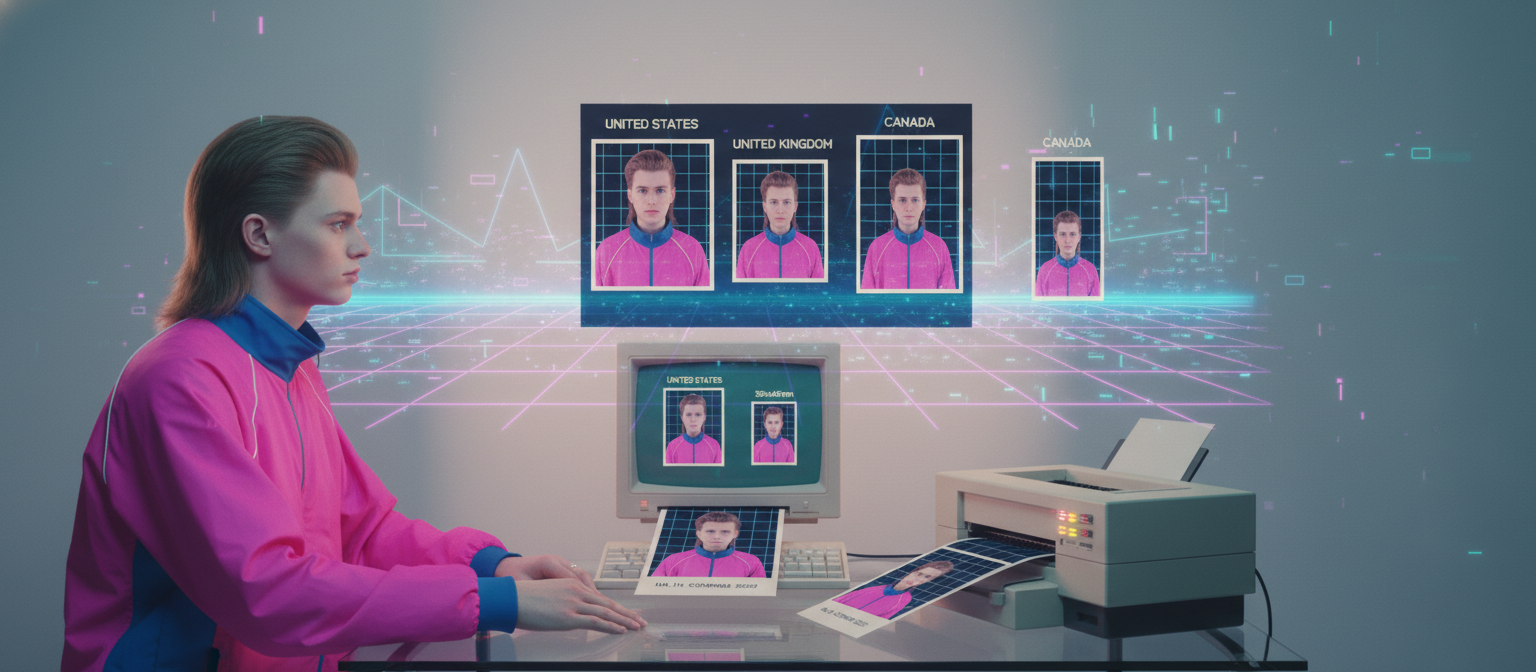
My passport expired last month. I needed new photos. The CVS near my house charges $16.99 for two passport photos. Walgreens charges $14.99. The post office charges $15. For two small pictures of my face against a white wall.
I took the photo with my phone instead. Used a free online tool to crop it to the exact dimensions, set the background to white, and printed 8 copies on a single 4×6 at my local pharmacy for 35 cents.
Same result. $16 saved. And I got to retake the photo until I actually liked how I looked — something the CVS employee definitely wasn’t going to let me do.
What makes a valid passport photo
Before you take the photo, know the rules. Passport offices reject photos for surprisingly minor reasons — wrong size, wrong background shade, glasses visible, too much shadow. The requirements are strict but simple once you know them.
US passport photo requirements (State Department):
- Size: 2 x 2 inches (51 x 51 mm)
- Head height: 1 to 1-3/8 inches (25 to 35 mm) from bottom of chin to top of head
- Background: plain white or off-white
- Taken within the last 6 months
- Full face, front view, eyes open
- No glasses (as of 2016)
- Neutral expression or natural smile
- No hats or head coverings (religious exceptions allowed)
UK passport photo requirements (HM Passport Office):
- Size: 35 x 45 mm
- Head height: 29 to 34 mm from chin to crown
- Background: plain light grey or cream
- Neutral expression, mouth closed
- No glasses
- No head coverings (religious exceptions allowed)
- Must be a true likeness — no filters, no retouching
Canadian passport photo requirements:
- Size: 50 x 70 mm
- Face height: 31 to 36 mm from chin to crown
- Background: plain white
- Neutral expression
- No glasses
- Taken within the last 12 months
Other countries have their own specific dimensions and rules. Most follow a similar pattern — white or light background, neutral expression, no glasses, front-facing.
How to take the photo at home
You don’t need a professional camera. Any modern smartphone takes photos that exceed passport resolution requirements. Here’s how to get a photo that won’t be rejected.
Find a white or light-colored wall. A plain white wall is ideal for US and Canadian passports. A light grey wall works for UK passports. No patterns, no texture, no shelves or picture frames visible behind you. If you can’t find a plain wall, hang a white bed sheet behind you.
Use natural light. Stand facing a window. The light should come from in front of you, not behind you. Window light gives even, soft illumination without harsh shadows. Avoid direct sunlight — it creates strong shadows on one side of your face.
No flash. The phone’s flash creates red-eye, hot spots on your forehead, and harsh shadows behind your head. Natural light from a window is always better.
Stand 4-6 feet from the wall. This prevents your shadow from appearing on the wall behind you. If you’re too close to the wall, your shadow shows up in the photo and the passport office rejects it.
Camera at eye level. Ask someone to hold the phone at your eye level, or prop it on a shelf and use the timer. Don’t shoot from above (makes your head look big) or below (makes your chin prominent). Eye level, straight on.
Look directly at the camera. Both eyes open. Face the camera squarely — no tilting your head, no turning to the side. Your nose should be centered in the frame.
Remove glasses. The US, UK, and Canada all prohibit glasses in passport photos now. Take them off.
Neutral expression. The US allows a natural smile. The UK wants a neutral expression with mouth closed. When in doubt, go neutral — it’s accepted everywhere.
Take multiple shots. This is the advantage of doing it at home. Take 10-15 photos and pick the best one. At CVS you get one shot.
How to format the photo to the correct size
You have a good photo. Now you need to crop it to the exact passport dimensions for your country. Several options:
ConvertKr Passport Photo — upload your photo, select your country, the tool automatically crops to the correct dimensions with the right head-to-frame ratio. Adjusts the background to white if it’s slightly off. Generates a print-ready sheet with multiple copies on one page. No account, free, processes in your browser.
ePassportPhoto — web-based, shows the size requirements and lets you adjust the crop. Free with watermark, paid without. Decent for checking dimensions.
IDPhoto4You — free, generates a printable sheet. Requires Flash on some features (outdated). Results vary.
Passport Photo Online — AI-powered background removal and auto-crop. Free tier has limitations.
Do it manually — if you know the exact pixel dimensions, you can crop in any photo editor. For US 2×2 inches at 300 DPI, you need 600 x 600 pixels. For UK 35x45mm at 300 DPI, you need 413 x 531 pixels. Crop, resize, done.
Pixel dimensions for common countries
At 300 DPI (standard print quality):
| Country | Size (mm) | Size (inches) | Pixels (300 DPI) |
|---|---|---|---|
| United States | 51 x 51 | 2 x 2 | 600 x 600 |
| United Kingdom | 35 x 45 | 1.38 x 1.77 | 413 x 531 |
| Canada | 50 x 70 | 2 x 2.75 | 600 x 827 |
| India | 51 x 51 | 2 x 2 | 600 x 600 |
| Schengen / EU | 35 x 45 | 1.38 x 1.77 | 413 x 531 |
| Australia | 35 x 45 | 1.38 x 1.77 | 413 x 531 |
| China | 33 x 48 | 1.30 x 1.89 | 390 x 567 |
| Pakistan | 35 x 45 | 1.38 x 1.77 | 413 x 531 |
Fixing the background
You took the photo against a white wall but it looks slightly grey or beige in the photo. This is normal — phone cameras adjust white balance and lighting, making whites look warm or cool.
Two fixes:
Use a background remover. Remove the background entirely with an AI background remover, then add a pure white background. This gives you a perfectly white background regardless of what your wall looked like.
Use the passport photo tool’s built-in background adjustment. ConvertKr’s passport photo tool can adjust the background to pure white automatically during the crop process.
For UK passports that require light grey, remove the background and add a light grey fill instead of white.
Printing the photo
Once you have the correctly sized photo, you need to print it. Don’t print it at home on a regular inkjet printer — the quality usually isn’t good enough and the paper is wrong. Passport offices want glossy photo paper.
Best option: print at a pharmacy or photo kiosk. CVS, Walgreens, Walmart, Target, and Costco all have photo printing services. Upload your image, select 4×6 print, pick it up for $0.25-0.50.
The trick: instead of printing one photo per 4×6, put multiple copies on a single 4×6 print. A US 2×2 photo fits 4 times on a standard 4×6 print. You get 4 passport photos for the price of one regular print.
ConvertKr’s passport photo tool has a “Print Sheet” option that automatically arranges multiple copies on a 4×6 or A4 sheet. Download the sheet, upload to the pharmacy’s photo service, print.
For online applications: Many passport renewal and visa applications now accept digital uploads instead of printed photos. Upload the JPEG directly — check the specific resolution and file size requirements for the application.
Common rejection reasons
Shadow on the face or behind the head. The most common rejection. Stand further from the wall and use even, front-facing light. If one side of your face is darker than the other, the light source is to the side — move so the light is directly in front of you.
Background not white enough. Your wall was cream-colored, or the camera’s auto white balance shifted the color. Use a background remover to replace with pure white.
Head too large or too small in the frame. The US requires your head to be 1 to 1-3/8 inches in the 2×2 frame. If you’re too close to the camera your head fills the frame. If you’re too far, your head is tiny. A passport photo tool handles the correct ratio automatically.
Glasses visible. Even clear glasses with no tint get rejected. Take them off.
Expression too animated. Big smile, open mouth, raised eyebrows — all rejected by most countries. Keep it neutral or a slight closed-mouth smile.
Photo too old. The US requires photos taken within the last 6 months. Canada allows 12 months. If you’ve changed your appearance significantly (grew a beard, changed hair color, lost weight), take a new photo even if the old one is technically within the time limit.
Red-eye. From flash photography. Take the photo with natural light and no flash. If you already have a photo with red-eye, most phone photo editors can fix it.
Visa photos — same process, different sizes
Visa applications for most countries require photos similar to passport photos but sometimes with different dimensions or background colors:
US visa (B1/B2, H1B, etc.): Same as US passport — 2×2 inches, white background.
Schengen visa: 35x45mm, white or light grey background.
China visa: 33x48mm, white background. Slightly different from the standard 35×45.
India visa / OCI: 2×2 inches, white background. Same as US passport size.
Use the same process — take the photo at home, use a passport photo tool to crop to the right dimensions, print or upload digitally.
ID card and license photos
The same technique works for any ID-style photo:
Driver’s license renewal — some states accept uploaded photos for online renewals.
Employee badges — HR departments often accept self-taken photos if they meet basic requirements.
Student ID — universities accept uploaded photos for ID cards.
Membership cards — gyms, clubs, organizations.
For any of these: white background, front-facing, good lighting, correct crop dimensions.
Cost comparison
| Method | Cost | Photos |
|---|---|---|
| CVS | $16.99 | 2 photos |
| Walgreens | $14.99 | 2 photos |
| USPS Post Office | $15.00 | 2 photos |
| Costco | $6.99 | 2 photos |
| DIY at home + pharmacy print | $0.35 | 4-8 photos |
The privacy angle
Your passport photo includes your face — biometric data. Some online passport photo tools upload your photo to their servers for processing. If you’re uncomfortable with your face being on someone else’s server, use a tool that processes locally in your browser.
ConvertKr processes everything in your browser — the photo never leaves your device. Preview on your phone also works offline. For something as personal as biometric photos, local processing matters.
FAQ
Can I use a selfie?
Technically yes, if it meets all the requirements — front-facing, arms not visible, correct framing. But selfies taken at arm’s length often have slight distortion (nose looks bigger). It’s better to have someone else take the photo or use a phone on a timer propped at eye level.
Can I smile?
US passports allow a natural, closed-mouth smile. UK passports require a neutral expression. Canada requires neutral. When in doubt, don’t smile — neutral is accepted everywhere.
What if my baby won’t stop moving?
Infant passport photos are the hardest. Lay the baby on a white sheet, hold their head still, and take the photo from directly above. Many passport offices are lenient with infant photos — slight eye closure or mouth opening is usually accepted.
How many photos do I need?
US passport: 1 photo (attached to application). US visa: 1 photo. UK passport: 2 photos. Canadian passport: 2 photos. Always print extras — applications sometimes get lost or photos fall off.
Can I wear makeup?
Yes, as long as it doesn’t alter your appearance significantly. Everyday makeup is fine. Theatrical or costume makeup that changes your facial features is not.
Will my phone camera quality be good enough?
Yes. Any phone from the last 5 years takes photos that far exceed the 300 DPI / 600×600 pixel requirement. The State Department’s minimum is 600×600 pixels — even a basic phone shoots at 3000×4000 or higher.
Can I edit the photo (brightness, contrast)?
Minor adjustments to brightness and contrast are fine. Do not use filters, beauty mode, or retouching that alters your appearance. The photo must be a “true likeness.”
What paper should I print on?
Glossy photo paper. Matte paper is sometimes accepted but glossy is the standard. Pharmacy photo prints (4×6, 5×7) are always on glossy photo paper — that’s the easiest option.
Need a passport photo? Create one here — select your country, upload your photo, get a correctly sized and print-ready result. Or use the background remover first if your wall isn’t white enough.